



The TubeBuddy browser extension brings keyword research and video optimization tools into your YouTube workflow. It can help you compare topic ideas, prepare metadata, and reduce repetitive channel tasks. The useful question is whether those tools solve a problem you actually have.
Start with the official TubeBuddy installation page. This guide explains setup, browser support, the main tools, free versus paid access, privacy checks, and common fixes. It also walks through a practical video example you can adapt to your channel.
Disclosure: This article contains an affiliate link. We may earn a commission if you purchase through it.
Editorial note: Product information was checked against official sources on October 4, 2026. This is a researched guide, not a report of hands-on performance testing.
What Is the TubeBuddy Browser Extension?
TubeBuddy is a third-party toolkit for YouTube creators. Its browser extension places tools alongside the pages where you research and manage videos. Some features also use TubeBuddy’s website. It is separate from YouTube Studio and does not replace your channel’s own analytics.
How TubeBuddy Works with YouTube
You install the extension in a supported browser, sign in, and connect the intended channel. Available tools then help with tasks such as researching search phrases and reviewing video metadata. Access depends on your license and the tool involved. Treat suggestions as inputs to your publishing decisions, rather than instructions to accept automatically.
Who Is TubeBuddy Best For?
TubeBuddy is worth considering if you publish regularly and want a repeatable research process. A beginner can use it to learn how topics and search phrases relate. A creator with an established library may find time savings in repeatable editing tasks more valuable than another keyword suggestion.
If you have not created your channel yet, begin with this guide to starting a YouTube channel. Choose your audience and format before paying for optimization software.
How to Download and Install the TubeBuddy Browser Extension
Use a desktop browser for this walkthrough. TubeBuddy’s official installation page directs you toward the appropriate extension source.
Download TubeBuddy from the Official Source
Open tubebuddy.com/install. For Chrome, follow the official store link and check that the listing points back to TubeBuddy’s website. Avoid unofficial downloads, modified extension packages, and offers to unlock paid tools for free.
Install the Extension and Review Its Permissions
Select the browser’s installation button and read the permission request before confirming. Browser permissions and Google account authorization are separate prompts: one concerns the extension, while the other concerns access to your account. Decide whether the requested access fits the features you intend to use.
Connect Your YouTube Channel
Open YouTube, sign in to the Google account that manages your channel, and follow TubeBuddy’s connection prompts. If the account manages more than one channel, check the selected channel name carefully. Do not assume the first channel displayed is the one you want to optimize.
Confirm That TubeBuddy Is Working
Refresh YouTube and look for the TubeBuddy menu or tools. Open an available feature and verify that the intended channel is connected. The exact controls may change between releases. If nothing appears, work through the troubleshooting section below before repeatedly reinstalling.
Which Browsers Does TubeBuddy Support?
TubeBuddy’s support documentation lists Chrome, Microsoft Edge, and Opera for desktop use. It states that Firefox is no longer supported and that Safari and mobile browsers are not supported.
| Browser or platform | What to know |
|---|---|
| Google Chrome on desktop | Supported; use an up-to-date version. |
| Microsoft Edge on desktop | Supported; updates may arrive later than Chrome updates. |
| Opera on desktop | Listed as supported; follow TubeBuddy’s Opera installation instructions. |
| Firefox or Safari | Not currently supported by the extension. |
| Mobile browser | Not supported; a mobile app is a separate product experience. |
Do not confuse the TubeBuddy Chrome extension with its mobile app. The official installation guide links to Android and iOS apps, but that does not mean every desktop tool is available on a phone.
Key TubeBuddy Features for YouTube Creators
Focus on the tool that addresses your current publishing bottleneck. If topic selection is difficult, start with research. If viewers struggle to understand your video’s promise, work on its title and thumbnail.
Keyword Explorer for Video Topic Research
Keyword Explorer provides keyword scores, related searches, and information about search demand and competition. Its official page lists limited free access and availability on Pro and Legend.

For example, a creator teaching filming techniques could compare “cooking videos” with “how to film cooking videos with a phone.” The second phrase identifies a more specific problem. Review the actual search results: are viewers looking for filming advice, recipes, or equipment reviews?
A keyword score helps organize research; it does not establish how many views your next video will receive. Do not publish a search estimate as a verified audience count or assume a high score guarantees an easy ranking.
SEO Studio for Video Optimization
SEO Studio guides work on a target keyword, title, description, and tags. Open it from TubeBuddy’s menu, enter the topic, and review its suggestions against the actual video. Check the current plan matrix and your account for access.
Use the guidance to make the subject clear. If a suggestion makes the title repetitive or the description awkward, rewrite it. An optimization score is a software assessment, not a ranking issued by YouTube or Google.
Thumbnail Tools and A/B Testing
TubeBuddy offers thumbnail tools and an A/B testing workflow for comparing thumbnail or metadata alternatives. Its documented setup lets you select a video, choose a test type, and supply an alternative.
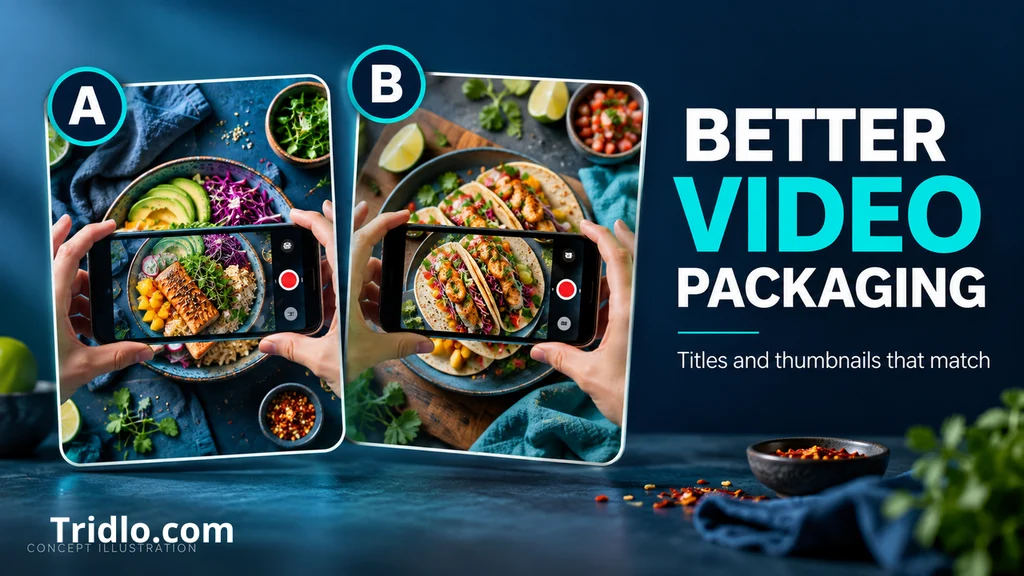
A useful test begins with a clear question: does a close-up of the finished result communicate the topic better than a wide shot of the equipment? Change one major element at a time when practical. Avoid treating a small, short-lived difference as proof of a universal winning design.
The current pricing comparison places A/B testing on Legend and Enterprise rather than Pro. Thumbnail Analyzer access is listed as limited on Pro and Legend, with broader access on Enterprise. Confirm the exact tool you need before subscribing.
Productivity and Bulk Processing Tools
TubeBuddy’s tool catalog includes upload profiles, canned responses, templates, and bulk editing options. These can be useful when a repeated task consumes more time than the research itself. For example, a standard response can provide a starting point for a frequently asked question; personalize it before replying.
For bulk changes, review the selected videos and proposed edits first. Test on a small group before applying a change across your library. Availability and limits differ by tool and license, so the word “paid” should not be read as “unlimited.”
How to Use TubeBuddy to Optimize a YouTube Video
The following is an illustrative workflow for a tutorial about filming food with a smartphone. It demonstrates decisions you can make; it is not a case study or a claim of measured traffic growth.
Choose a Relevant Topic and Keyword
Start with the viewer’s problem: “I want to record overhead cooking videos without buying a camera.” Compare a few related phrases in Keyword Explorer and inspect the videos already answering them. Choose a topic you can demonstrate clearly with equipment you actually use.
A suitable working phrase is “how to film cooking videos with a phone.” Plan the explanation before recording: phone position, lighting, stable framing, and a short example clip. This keeps the keyword connected to useful content.
Write a Clear Video Title and Description
A possible title is “How to Film Cooking Videos with a Phone: A Simple Setup.” It identifies both the task and the scope. Use it only if the video really demonstrates a simple setup.
A possible description opening is: “Learn how to film cooking videos with a phone using a stable overhead setup, window light, and a clear shot list. This tutorial walks through the setup and shows the resulting footage.” Add accurate chapters, equipment details, and relevant links beneath it.
You can review the draft in SEO Studio, but read it aloud before publishing. If it sounds like a string of search phrases, simplify it. For more background, see the guide to YouTube search engine optimization.
Add Relevant Tags Without Stuffing
Use a few genuinely relevant phrases, such as “smartphone food videography” and “overhead cooking video setup,” when they match the video. Do not add popular but unrelated topics.
YouTube says titles, thumbnails, and descriptions matter more for discovery than tags. Tags can help with commonly misspelled terms; otherwise, they play a limited role. YouTube also warns against excessive tags in descriptions.
Review Your Thumbnail and Publishing Checklist
Show the result the viewer wants to achieve. For this example, an overhead phone setup and a clear image of the food make a more relevant promise than an unrelated surprised face. Check readability at a small size and remove decorative text that obscures the subject.
Before publishing, confirm that the opening demonstrates the promised topic, the title matches the content, any chapters match the timeline, and the description links work. Use readable captions and check names or technical terms for mistakes.
Track Results After Publishing
Use your channel analytics to review impressions, click-through rate, watch time, and audience retention. Compare similar videos over comparable periods and consider where the traffic came from. A search visitor and a returning subscriber may respond differently.
If people click but leave before the demonstration begins, a shorter introduction is a reasonable next experiment. If people rarely click, review whether the title and image communicate a useful outcome. Record your changes so you can distinguish an observation from a guess.
TubeBuddy Free vs. Paid: What Do You Get?
Plan information was reviewed on October 4, 2026. The official pricing page did not expose reliable numeric paid prices in the retrieved version, so this guide does not quote unverified amounts. Check the final currency, billing interval, taxes, and total before purchasing.

| Option | Access summary | Cost and billing | Best fit |
|---|---|---|---|
| Free | Limited Keyword Explorer access; tool restrictions apply. | Free entry option. | Learning the workflow. |
| Pro | Keyword Explorer and basic optimization tools. | Paid; monthly or annual billing. Verify current price. | Creators who need routine research. |
| Legend | Broader SEO, analytics, testing, and bulk tools. | Paid; monthly or annual billing. Verify current price. | Regular publishers with specific advanced tasks. |
| Enterprise | Team and multiple-channel options. | Custom quote. | Brands and larger teams. |
Exact usage allowances should be checked in the current account and feature comparison. Upgrade because a named tool removes a recurring obstacle, rather than because a plan sounds more professional.
For example, calculate the time spent on a repeated task during your next four uploads. If the paid feature would save meaningful work and you can afford the renewal cost, a subscription may be sensible. If you are still deciding what to publish, the free workflow may be enough.
Review current TubeBuddy plans and pricing through this affiliate link. Subscriptions renew on the chosen billing cycle. Cancellation preserves paid access through the current period before the channel returns to free access; the pricing FAQ also advertises a 30-day refund policy. Contact support for the applicable refund process.
TubeBuddy Pros and Cons
These are editorial assessments of the documented workflow, not conclusions from a controlled performance test.
Main Advantages
Research close to the publishing workflow can reduce the friction of switching between tasks. Keyword suggestions can help turn a broad idea into a specific tutorial. Repeatable optimization checks can also make it easier to notice an unclear title or an incomplete description before publishing.
The free entry point makes it possible to decide whether this approach suits you before committing to a subscription. Creators who repeatedly perform the same administrative tasks may place more value on productivity tools than on advanced analysis.
Limitations to Consider
Browser compatibility limits where the extension works. Feature restrictions can make a desired workflow unavailable on a lower plan. Account connection adds a permission decision that should be understood before setup.
Most importantly, a tool cannot supply expertise you have not demonstrated or fix a video that does not answer its title. More suggestions can even become a distraction if you keep rewriting metadata instead of improving the explanation itself.
TubeBuddy Permissions and Privacy: What to Check
Read the TubeBuddy privacy policy and the permissions displayed during installation and channel connection. The policy describes information collection, use, sharing, and requests concerning personal data. Do not treat a browser-store listing as a promise of zero risk.
Check which Google account and channel you are authorizing, whether you understand the requested access, and whether you still need the connection later. For a business channel, use an authorized account and follow your team’s access rules.
Google provides controls for reviewing and removing third-party connections. Removing access prevents future access through that connection, but does not necessarily delete information the provider already holds. Consult the provider’s data-deletion process when needed.
TubeBuddy Extension Not Working? Common Fixes
Start with the smallest useful check and change one thing at a time. This makes it easier to identify what resolved the problem.
TubeBuddy Is Not Showing on YouTube
Use an up-to-date supported desktop browser and open YouTube over HTTPS. Confirm the extension is enabled, then refresh the page. TubeBuddy’s support guidance also recommends checking for a repair prompt and testing for conflicts with other extensions.
If you suspect a conflict, temporarily disable a likely conflicting YouTube extension, refresh, and restore it if that did not help. A normal browser window is a useful starting point when private-browsing permissions are uncertain.
Sign-In or Channel Connection Problems
Check that YouTube and TubeBuddy are using the intended Google account and channel. Note the exact error before reconnecting. The TubeBuddy Help Center has separate guidance for login loops, missing channels, and account-specific linking errors. Avoid repeating an authorization prompt without understanding why it failed.
Missing Tools or Unavailable Features
Verify the tool’s plan requirements and the channel to which the license applies. A missing feature is not automatically an installation failure. Also check whether the feature belongs on the current YouTube page or in TubeBuddy’s website tools.
Updating or Reinstalling the Extension
Update the browser and extension first. If the problem persists, remove the extension and reinstall from the official source, as TubeBuddy’s troubleshooting guide suggests. If support is needed, provide the browser version, operating system, error text, and a screenshot with private information hidden.
Is the TubeBuddy Browser Extension Worth It?
For a beginner, the most useful starting point is the free extension plus a specific video idea. Learn the research process and publish something that answers a real question. For a regular publisher, a paid plan makes more sense when a particular research, testing, or editing feature solves a repeated problem.
If your main challenge is deciding what to say in the video, compare that need with the planning approach discussed in the TubeMagic guide. Keep your business expectations separate from optimization tools; this introduction to earning money on YouTube provides related context.
Try the official extension on one upcoming video. Write down what helped, what you did not use, and which limitations actually blocked your work. That gives you a concrete basis for deciding whether to keep using it or upgrade.
Frequently Asked Questions
Is the TubeBuddy Browser Extension Free?
TubeBuddy offers a free starting option, with restrictions on tools such as Keyword Explorer. Installing the extension does not give you every paid feature.
Can I Use TubeBuddy on Mobile?
The desktop extension does not support mobile browsers. TubeBuddy’s installation guide links to separate Android and iOS apps; check their current functions before assuming they reproduce your desktop workflow.
Does TubeBuddy Work with Multiple YouTube Channels?
The pricing FAQ says a standard license covers one YouTube channel. Review additional licensing or Enterprise options if you manage several channels.
Does TubeBuddy Guarantee More Views?
No result should be treated as guaranteed. Use its research and optimization suggestions to make informed changes, then evaluate what happens on your own channel. This guide provides no measured claim of increased views, ranking, or revenue.
How Do I Remove TubeBuddy and Revoke Access?
Remove the extension through your browser’s extension manager. Separately review TubeBuddy under your Google Account’s third-party connections and remove the relevant access. If you have a paid subscription, cancel it in your TubeBuddy account as well; uninstalling an extension is not subscription cancellation.