



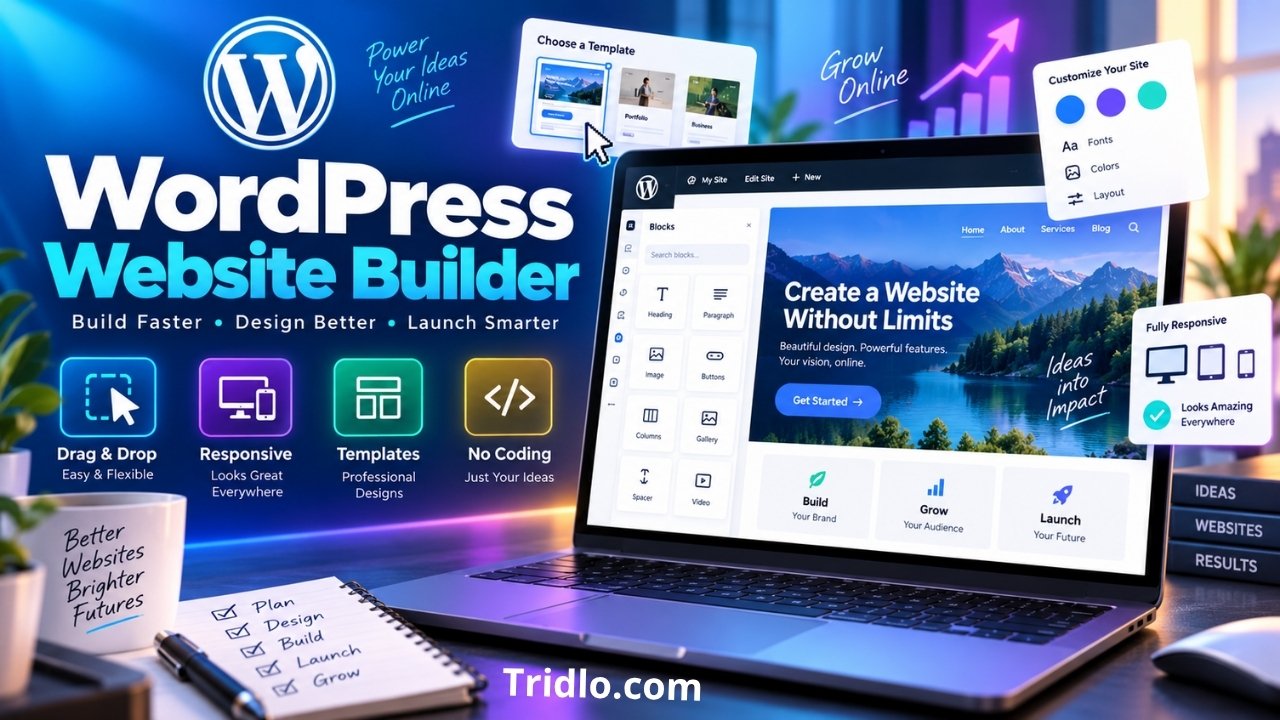
Choosing a WordPress website builder can have a bigger impact on your website than simply collecting the best WordPress plugins. Your builder influences how quickly you can create pages, how much control you have over the design, how easy the site is to maintain, and potentially how much extra code the finished pages need to load.
WordPress users have more choices than ever. You can build a site with WordPress’s native block-based tools or install a visual builder such as Elementor, Divi, Beaver Builder, SeedProd, or Brizy. The right choice depends less on which builder has the longest feature list and more on what you actually need to build.
This guide explains how WordPress website builders work, compares the leading approaches, and helps you choose a practical option for a blog, business website, online store, landing page, or client project.
What Is a WordPress Website Builder?
A WordPress website builder is a tool that helps you create and customize a WordPress website without manually coding every layout in HTML, CSS, PHP, or JavaScript.
Most builders provide a visual interface where you work with blocks, widgets, modules, containers, columns, templates, or other reusable design elements.
Instead of writing code for a two-column section, for example, you can usually add the layout visually, place text or images inside it, adjust spacing, and preview the result.
Modern WordPress gives you two broad approaches.
Native WordPress Site Editor
WordPress includes its own block-based design system. When you use a compatible block theme, the Site Editor can control much more than individual post content.
You can work with pages, templates, headers, footers, navigation, global styles, and reusable patterns within WordPress.
This option can be attractive if you want to keep your technology stack relatively simple and avoid depending on an additional page-builder ecosystem.
Third-Party Visual Builders
Plugins and theme ecosystems such as Elementor, Divi, Beaver Builder, SeedProd, and Brizy add their own visual editing interfaces.
Depending on the builder, these tools may provide advanced responsive controls, dynamic content, popup builders, form tools, WooCommerce design features, animation controls, large template libraries, and full theme-building capabilities.
The trade-off is that additional functionality can also introduce more settings, dependencies, and sometimes additional front-end resources.
How a WordPress Website Builder Works
Although every builder has its own interface, most follow the same general process.
You create a page or template, open the builder, add structural elements, insert content modules, customize the design, check the responsive layout, and publish the page.
Visual Editing
A visual editor allows you to change page elements while seeing a representation of the finished design.
Typical controls include:
- Typography
- Backgrounds
- Margins and padding
- Columns and containers
- Buttons
- Images
- Forms
- Icons
- Galleries
- Responsive settings
Some builders work directly on a front-end preview, while others use an editor interface that closely represents the final page.
Templates and Reusable Designs
Templates can dramatically reduce the amount of time required to build a site.
Instead of designing a service page from scratch, you may be able to import a layout and replace its text, images, colors, and branding.
Reusable sections are also useful for elements that appear repeatedly, such as calls to action, testimonials, pricing sections, or promotional banners.
Theme Building
A basic page builder changes the content area of a page.
A theme builder goes further by allowing you to design areas traditionally controlled by the WordPress theme, such as:
- Headers
- Footers
- Blog post templates
- Category archives
- Search pages
- Product templates
- Custom post type layouts
- 404 pages
This distinction matters if you want complete visual control over an entire website instead of only landing pages.
What to Look for in a WordPress Website Builder
The builder with the most features is not automatically the right one. Evaluate the parts of the tool that affect your actual workflow.
Ease of Use
A good interface should make common tasks predictable.
If changing a button, adjusting spacing, or creating a mobile layout takes several minutes of hunting through menus, the builder may slow your publishing process even if it is technically powerful.
Beginners may prefer a visually intuitive editor. Developers and agencies may care more about global design systems, reusable components, custom code, or dynamic data.
Design Control
Consider how much control you actually need.
A simple blog may only require:
- Global typography
- Color controls
- Basic page layouts
- Headers and footers
- Reusable patterns
A marketing website might need:
- Custom landing pages
- Forms
- Popups
- Advanced responsive layouts
- Dynamic content
- Animation
- Conversion-focused components
Do not pay for advanced controls that you are unlikely to use.
Performance
A website builder is only one part of website performance.
Hosting quality, theme code, images, fonts, third-party scripts, advertising, caching, plugin count, database configuration, and page complexity can all affect loading speed.
A poorly designed page can perform badly even when it uses a lightweight builder. Likewise, a more feature-rich builder can still produce an acceptable website when layouts are kept efficient and the rest of the technology stack is optimized.
When evaluating a finished website, pay attention to metrics such as Largest Contentful Paint, Interaction to Next Paint, and Cumulative Layout Shift.
Responsive Design
Your website must remain usable across desktop computers, tablets, and phones.
Look for controls that let you adjust elements such as:
- Font size
- Spacing
- Alignment
- Column behavior
- Element visibility
- Container width
However, avoid over-customizing every breakpoint. A consistent responsive system is usually easier to maintain than hundreds of one-off device-specific adjustments.
WooCommerce Support
If you plan to run an online store, check exactly what the builder can customize.
Basic compatibility with WooCommerce is not the same as a complete WooCommerce builder.
Depending on your needs, you may want control over:
- Product pages
- Product archives
- Shopping cart
- Checkout
- Account pages
- Upsells
- Related products
Confirm which capabilities are included in the version or plan you intend to use.
Dynamic Content
Dynamic content becomes important when you build directories, real-estate websites, membership sites, listing sites, or other projects where many pages share a consistent structure.
A builder with dynamic-data support can display information from WordPress custom fields or compatible plugins without requiring you to design each page manually.
Portability and Lock-In
Think beyond the initial build.
If you stop using the builder in two years, what happens to the content?
Some builders rely more heavily on their own structures than others. Switching tools can require rebuilding templates or sections even when the underlying WordPress content remains available.
For a long-term business website, migration effort should be part of the buying decision.
Best WordPress Website Builder Options to Consider
There is no single builder that is ideal for every WordPress website. The following options serve different types of users.
| Builder | Best Fit | Main Strength | Main Consideration |
|---|---|---|---|
| WordPress Site Editor | Blogs and simpler sites | Native WordPress workflow | Full-site editing depends on a block theme |
| Elementor | Visual design and marketing sites | Extensive design ecosystem | Advanced sites can become complex |
| Divi | Designers and multi-site workflows | Full-site visual design | Strong dependence on the Divi ecosystem |
| Beaver Builder | Freelancers and agencies | Established visual workflow | Fewer flashy tools than some rivals |
| SeedProd | Landing pages and marketing sites | Fast visual page creation | Full website features depend on plan |
| Brizy | Users who value simple visual editing | Clean visual workflow | Smaller ecosystem than larger competitors |
WordPress Site Editor
The native WordPress Site Editor deserves serious consideration before you install another builder.
With a compatible block theme, WordPress can use blocks for the structure of the site, including headers, footers, templates, navigation, pages, and other reusable areas.
For a content-focused blog, publication, informational website, or relatively straightforward business site, the native system may provide everything you need.
Its biggest advantage is integration. You are working within WordPress rather than adding an entirely separate design environment.
The limitation is that advanced visual-design workflows can still feel less comprehensive than dedicated premium builders.
Best for: users who prefer a WordPress-native workflow and want to minimize unnecessary dependencies.
May not suit: designers who need highly specialized visual effects, marketing tools, or advanced dynamic-layout controls.
Elementor
Elementor is one of the most feature-rich visual builders available for WordPress.
Its visual editor provides extensive control over layout, typography, responsive behavior, forms, dynamic content, and reusable design elements.
Its broader ecosystem also includes theme-building tools and WooCommerce customization.
This makes Elementor particularly attractive for businesses, freelancers, marketers, and designers who want a visual workflow without coding every layout manually.
Its strength can also become a weakness. With so many options, widgets, integrations, and extensions available, it is easy to make a site more complicated than necessary.
Use the features you need rather than adding extensions simply because they are available.
Best for: business websites, marketing sites, freelancers, and users who want significant visual flexibility.
May not suit: users who want the smallest possible technology stack or only need simple content layouts.
Divi
Divi combines a visual builder with a broader WordPress design ecosystem.
It supports front-end visual editing and theme-building features that allow designers to create site-wide templates, headers, footers, post layouts, and WooCommerce designs.
Divi is particularly appealing to people who prefer to create multiple websites within one consistent design environment.
Its large collection of design settings and templates gives users substantial creative flexibility.
The main consideration is ecosystem dependence. Once you build a substantial website around a particular builder’s workflow, moving away from it can require additional work.
Best for: designers, agencies, freelancers, and users building multiple visually customized websites.
May not suit: users who prefer to remain as close as possible to native WordPress tools.
Beaver Builder
Beaver Builder has built a long-standing reputation around straightforward visual editing and professional WordPress workflows.
It provides drag-and-drop editing, templates, reusable layouts, responsive controls, WordPress widget support, and options for adding custom code when required.
Certain plans also provide functionality aimed at professional and agency workflows.
Compared with some competitors, Beaver Builder may feel less focused on dramatic design effects. That can actually be an advantage for users who prefer a more controlled workflow.
Best for: freelancers, developers, agencies, and site owners who value a mature visual editing environment.
May not suit: users looking primarily for a large collection of elaborate visual effects.
SeedProd
SeedProd is well suited to landing pages, promotional pages, lead-generation sites, and visually built WordPress themes.
Its website-building features can create headers, footers, page templates, post templates, archive layouts, and other theme components without manually editing theme files.
This makes it useful for marketers who want more than a simple landing-page plugin.
Check the plan carefully because some full website-building capabilities are available only in paid tiers.
Best for: marketing sites, landing pages, campaigns, and users who want a visual theme-building workflow.
May not suit: users who only need a free, basic blog editor.
Brizy
Brizy emphasizes visual simplicity.
Its WordPress version provides drag-and-drop editing, pre-designed layouts, visual elements, and theme-building functionality for areas such as headers, footers, blog templates, archives, and other WordPress sections.
The interface may appeal to users who find some larger page builders overwhelming.
Its ecosystem is smaller than Elementor or Divi, however, so check compatibility with any specialized plugins your project requires.
Best for: users who prioritize an approachable visual editing experience.
May not suit: projects that rely on a very large ecosystem of third-party builder extensions.
Is the Native WordPress Site Editor Enough?
For many websites, yes.
You do not automatically need a third-party builder simply because you are using WordPress.
If your website consists primarily of blog posts, informational pages, category pages, a homepage, an About page, and a Contact page, a good block theme and the Site Editor may be sufficient.
Consider adding another builder when you can clearly identify functionality that your existing setup cannot provide efficiently.
For example, a dedicated builder may make sense when you need highly customized landing pages, advanced dynamic templates, sophisticated design systems, client editing controls, or marketing features.
This approach helps avoid unnecessary plugins and complexity.
WordPress Site Editor vs. Page Builder
The distinction between WordPress and third-party page builders has become less clear over time because WordPress itself now provides increasingly capable visual site-editing tools.
The practical difference is mostly about depth and workflow.
| Feature | Native Site Editor | Third-Party Builder |
|---|---|---|
| Core WordPress integration | Excellent | Depends on builder |
| Additional plugin required | No | Usually yes |
| Visual page editing | Yes | Yes |
| Full-site templates | Yes with block themes | Common in advanced builders |
| Advanced visual effects | Moderate | Often extensive |
| Marketing tools | Limited | Often available |
| Learning curve | Moderate | Varies |
| Third-party ecosystem dependency | Low | Moderate to high |
If simplicity is your priority, start with WordPress itself.
If you can identify a specific feature gap, then compare third-party builders based on that requirement.
Which WordPress Website Builder Is Best for You?
A decision based on use case is more useful than declaring one universal winner.
| Type of User | Good Starting Option | Why |
|---|---|---|
| Beginner blogger | WordPress Site Editor | Fewer additional tools to learn |
| Small business | Site Editor or Elementor | Balance of simplicity and design flexibility |
| Marketing website | Elementor or SeedProd | Strong landing-page workflows |
| Designer | Elementor or Divi | Extensive visual control |
| Freelancer | Elementor, Divi, or Beaver Builder | Reusable professional workflows |
| Agency | Divi or Beaver Builder | Useful multi-site and professional workflows |
| WooCommerce store | Elementor or Divi | Advanced store-design capabilities |
| Minimalist site owner | WordPress Site Editor | Keeps the setup closer to WordPress core |
These are starting points rather than absolute rules.
The best choice is the builder that solves your project’s requirements with the least unnecessary complexity.
Free vs. Paid WordPress Website Builders
A free builder can be sufficient for many websites.
The native WordPress editor itself is available as part of WordPress, and several third-party builders offer free versions.
Paid plans usually become valuable when you need functionality such as:
- Theme building
- Dynamic content
- Advanced forms
- WooCommerce design tools
- Premium templates
- Popup builders
- Advanced modules
- Client or agency features
- Premium support
Do not upgrade because a feature list looks impressive.
Upgrade when a paid feature solves an actual limitation in your project or saves enough time to justify its cost.
How to Choose a WordPress Website Builder
A structured decision process can prevent costly migrations later.
1. Define the Website
Write down what you are actually building.
Is it a blog, company website, landing-page site, portfolio, magazine, membership project, directory, or WooCommerce store?
Different sites require different levels of design control.
2. List Essential Features
Separate essential requirements from features that would merely be nice to have.
If you only need a homepage, blog, contact form, and service pages, you probably do not need the most complicated builder available.
3. Check Theme Compatibility
Confirm whether your chosen builder works well with your theme.
If you plan to use WordPress’s Site Editor, you will need an appropriate block theme for full-site editing.
4. Check Plugin Compatibility
Specialized sites often rely on plugins for SEO, caching, forms, membership functions, custom fields, multilingual content, or ecommerce.
Check compatibility before building dozens of pages.
5. Test Responsive Controls
Build a sample page and inspect it on different screen sizes.
A design that looks excellent on a wide desktop screen may become difficult to use on a phone.
6. Evaluate Performance
Create a realistic test page rather than an empty demo.
Add actual images, headings, buttons, forms, and other elements that your finished site will use.
Then test the result.
7. Think About the Next Three Years
Ask what happens if:
- The site grows significantly.
- Another person needs to edit it.
- You add WooCommerce.
- You redesign the brand.
- You stop using the builder.
- You move to another theme.
Long-term maintainability matters as much as the first-day editing experience.
Can a WordPress Website Builder Affect SEO?
A builder does not automatically make a website rank well or rank poorly.
SEO depends on a much broader combination of content quality, search intent, site architecture, crawlability, internal linking, page experience, backlinks, technical implementation, and many other factors.
A builder can still influence some technical aspects of the site.
For example, unnecessarily complex layouts can increase HTML, CSS, JavaScript, image weight, or rendering work.
That is why design decisions matter.
Keep Layouts Efficient
Avoid adding multiple nested containers when a simpler structure achieves the same result.
Use animation only when it improves the experience rather than applying effects to every section.
Optimize Images
Large uncompressed images can damage performance regardless of which builder you use.
Resize images appropriately and use modern image formats when your setup supports them.
Limit Unnecessary Add-Ons
Many page builders have third-party extension ecosystems.
Install an extension because you need its functionality, not because it provides another collection of widgets that may never be used.
Monitor Core Web Vitals
Performance should be measured after the website is built rather than assumed from the builder’s marketing claims.
Google’s Core Web Vitals focus on loading performance, responsiveness, and visual stability.
Use real-world data whenever possible and continue monitoring performance as the website grows.
Common WordPress Website Builder Mistakes
Choosing Based Only on Templates
A beautiful demo does not tell you whether a builder fits your long-term workflow.
Templates can accelerate design, but maintenance, performance, compatibility, and editing experience matter more over time.
Installing Multiple Builders
Using several page builders on one website can create unnecessary complexity.
Unless there is a clear migration or compatibility reason, choose one primary design system.
Ignoring Mobile Design
Do not wait until the website is complete before checking mobile layouts.
Review responsive behavior throughout the building process.
Adding Too Many Widgets
Just because a builder includes dozens or hundreds of elements does not mean every page should use them.
Consistent typography, strong spacing, clear navigation, and good content often produce better results than excessive visual decoration.
Relying on a Builder for Everything
A website builder handles design.
It does not replace good hosting, security practices, backups, SEO strategy, analytics, accessibility work, quality content, or ongoing maintenance.
How to Start Building Your WordPress Website
The exact process depends on your builder, but a sensible workflow looks like this:
- Install WordPress.
- Choose a compatible theme.
- Decide whether the native Site Editor meets your needs.
- Install one third-party builder only if necessary.
- Define global fonts and colors.
- Build the header and footer.
- Create the homepage.
- Build reusable page or post templates.
- Optimize the mobile version.
- Compress and resize images.
- Test forms and navigation.
- Check website performance.
- Review SEO settings.
- Back up the site before launch.
- Publish and continue monitoring the finished website.
Starting with global design settings is important. It is far easier to change one global color later than manually update the same color across dozens of individual elements.
Frequently Asked Questions
Is WordPress a website builder?
Yes. WordPress includes block-based editing tools and, with a compatible block theme, a Site Editor that can control pages, templates, headers, footers, navigation, styles, and other areas of the website.
Third-party builders are optional rather than mandatory.
What is the best WordPress website builder for beginners?
There is no universal answer.
Beginners building relatively straightforward websites should first evaluate WordPress’s native editing tools. Users who want greater visual control may prefer a dedicated builder such as Elementor, Divi, Beaver Builder, SeedProd, or Brizy.
The best option is the one you can comfortably maintain after the site launches.
Is the WordPress Site Editor free?
Yes. The Site Editor is part of WordPress.
To use its full site-editing capabilities, your site needs a compatible block theme.
Premium themes, plugins, hosting, or other services may still involve separate costs.
Is Elementor better than the WordPress Site Editor?
Elementor generally provides a broader visual-design ecosystem, including advanced widgets and specialized site-building features.
The native WordPress editor provides tighter integration with WordPress core and may be sufficient for users who do not need those additional capabilities.
Choose based on requirements rather than popularity alone.
Do WordPress website builders slow down a website?
They can contribute additional markup, CSS, JavaScript, or other resources, but the builder is only one factor.
Hosting, images, themes, plugins, fonts, tracking scripts, advertising, caching, and page complexity can all affect performance.
A well-optimized site using a visual builder can perform better than a poorly optimized site using a lightweight setup.
Can I use a WordPress website builder with WooCommerce?
Yes.
Many builders support WooCommerce, but their customization capabilities vary.
If ecommerce is central to your business, verify support for product pages, product archives, cart pages, checkout layouts, account pages, and other store components before choosing a builder.
Can I switch builders later?
Usually, but expect some rebuilding.
Your WordPress content may remain available, while builder-specific layouts, templates, styling, and components may need to be recreated.
This is why portability and long-term maintenance should be considered before committing to a builder.
Final Thoughts
The best WordPress website builder is not necessarily the tool with the most widgets, templates, or marketing features. It is the builder that gives you enough control to create the site you need without adding unnecessary complexity.
Start by evaluating WordPress’s native Site Editor. If it meets your requirements, keeping the stack simple can make maintenance easier.
If you need more advanced visual control, dynamic content, conversion tools, specialized WooCommerce layouts, or professional design workflows, compare tools such as Elementor, Divi, Beaver Builder, SeedProd, and Brizy based on those specific requirements.
Whichever option you choose, keep the final website fast, mobile-friendly, easy to update, and genuinely useful to the people visiting it. Those qualities matter much more than choosing a builder simply because it has the longest feature list.


Comments are closed.