


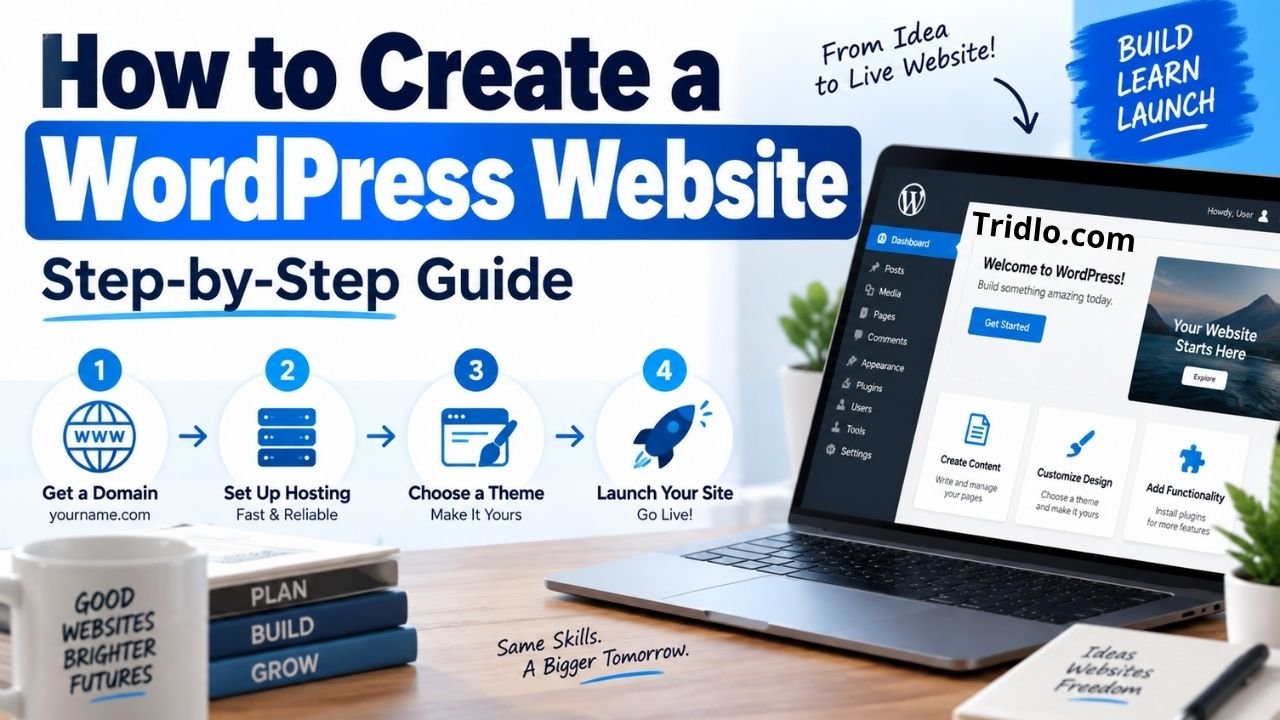
Learning how to create a WordPress website does not require you to become a developer or learn programming first. With a domain name, suitable hosting, WordPress, and a clear plan, you can build anything from a personal blog or business website to a content publication or online store.
The technical setup is only part of the job, though. A successful website also needs clear navigation, reliable hosting, a mobile-friendly design, useful content, sensible security measures, and a structure that search engines can understand.
This guide walks you through the entire process from choosing the right type of WordPress setup to publishing your website and preparing it for visitors and search engines.
What You Need Before Creating a WordPress Website
A basic WordPress website usually requires three core components:
- A domain name — the address people type to reach your website.
- Web hosting — the server where your website files and database are stored.
- WordPress — the content management system you use to build and manage the site.
You will also need a theme for the design and, depending on your goals, a small collection of plugins for additional functionality.
Do You Need Coding Skills?
No.
WordPress can be managed through a visual dashboard, and the block editor lets you create pages, posts, images, buttons, columns, and other page elements without manually writing HTML or CSS.
Coding knowledge can be useful when you want advanced customization, but it is not a requirement for launching a professional WordPress website.
WordPress.org vs. WordPress.com: Which Should You Use?
One of the first points of confusion for beginners is the difference between WordPress.org and WordPress.com.
They share the WordPress name, but the setup and level of control are different.
| Feature | Self-Hosted WordPress.org | WordPress.com |
|---|---|---|
| Hosting | You choose your host | Hosting is included |
| Themes | Broad flexibility | Depends on the plan |
| Plugins | Broad flexibility | Depends on the plan |
| Server control | Greater control | Managed for you |
| Maintenance | You manage more of it | More is handled for you |
| Best for | Users wanting flexibility and control | Users wanting a managed setup |
When Self-Hosted WordPress Makes Sense
WordPress.org is often the better fit if you want extensive control over:
- Hosting.
- Themes.
- Plugins.
- Advertising.
- SEO tools.
- Site files.
- E-commerce.
- Custom functionality.
You download or install the open-source WordPress software through your web host and manage the site on your own hosting account.
When WordPress.com May Be Better
WordPress.com may appeal to someone who prefers a more managed experience and does not want to spend as much time handling hosting-related tasks.
The best choice depends on how much control, customization, and responsibility you want.
For the rest of this tutorial, the primary focus is self-hosted WordPress.
Step 1: Decide What Your Website Will Do
Before buying anything, define the purpose of the website.
Ask yourself:
- Who is the website for?
- What problem will it solve?
- What type of content will you publish?
- Will you sell anything?
- Do visitors need to contact you?
- Will you collect email subscribers?
- Do you plan to monetize the site?
- Will you publish content regularly?
Your answers influence everything from your hosting requirements to your theme and plugin choices.
Common WordPress Website Types
WordPress can be used for:
- Blogs.
- Business websites.
- News and magazine sites.
- Portfolio websites.
- Affiliate websites.
- Online stores.
- Membership sites.
- Educational websites.
- Local business websites.
- Professional service websites.
Avoid installing themes and plugins until you understand what the website actually needs.
More features do not automatically make a better website.
Step 2: Choose a Domain Name
Your domain is part of your site’s identity, so choose it carefully.
A strong domain is generally:
- Easy to remember.
- Easy to spell.
- Easy to pronounce.
- Relevant to your brand.
- Short enough to type comfortably.
- Free of unnecessary numbers or punctuation.
Should Your Keyword Be in the Domain?
Not necessarily.
A brandable domain can be more valuable over the long term than forcing an exact-match keyword into the name.
Google’s own SEO guidance emphasizes creating useful, understandable websites instead of relying on tactics such as keyword-heavy domains.
Choose a name that works for your audience and brand first.
Check the Domain Before Buying It
Before registering a domain, review:
- Trademark conflicts.
- Matching social media handles.
- Similar competing brands.
- Previous use of the domain when practical.
- Spelling and pronunciation.
Also make sure you control the domain registration account rather than relying entirely on a third party to manage it for you.
Step 3: Choose WordPress Hosting
Web hosting has a direct impact on your site’s reliability, speed, management experience, backups, and security.
Do not select a host based only on the cheapest introductory offer.
Look at what the plan actually provides.
What to Look for in WordPress Hosting
Consider:
- WordPress compatibility.
- HTTPS/SSL support.
- Server performance.
- Storage.
- Backup options.
- Customer support.
- Uptime history.
- Staging tools.
- Malware protection.
- Caching features.
- Data center locations.
- Upgrade options.
- Renewal terms.
For current WordPress installations, it is also wise to confirm that the hosting environment meets WordPress.org’s current server recommendations.
Shared vs. Managed WordPress Hosting
| Hosting Type | Best For | Main Advantage | Main Trade-Off |
|---|---|---|---|
| Shared hosting | New or smaller sites | Affordable and simple | Resources may be shared |
| Managed WordPress hosting | Businesses and growing sites | More WordPress-specific management | Usually costs more |
| VPS hosting | Advanced or growing projects | More resources and control | Requires more management |
| Cloud hosting | Sites needing scalability | Flexible infrastructure | Setup and pricing can vary |
A small website rarely needs the most powerful server available.
Start with enough resources for your current needs while making sure the hosting platform gives you an upgrade path.
Step 4: Connect Your Domain to Your Hosting
If you purchased the domain and hosting from the same provider, this may happen automatically.
If they are with different companies, you usually need to connect the domain using DNS settings or nameservers supplied by the host.
Changes to DNS are not always visible everywhere immediately, so a newly connected domain may require some propagation time.
Once the domain points to the hosting account, activate HTTPS before building the public version of the website.
Why HTTPS Matters
HTTPS encrypts information exchanged between the visitor’s browser and your website.
Your site should load using:
rather than an unsecured HTTP connection.
Modern WordPress hosting plans commonly provide SSL/TLS certificate options, but confirm that HTTPS is active across the entire site.
Step 5: Install WordPress
Most WordPress-focused hosting companies provide an automated installer.
That is generally the easiest option for beginners.
How to Create a WordPress Website Using One-Click Installation
The exact interface varies by hosting provider, but the process usually looks like this:
- Open your hosting control panel.
- Find the WordPress installer.
- Select the domain.
- Enter your website title.
- Create an administrator account.
- Start the installation.
- Log in to the WordPress dashboard.
The official WordPress documentation also notes that many hosting providers offer automatic WordPress installation tools.
Choosing Your Administrator Login
Do not use an obvious username such as:
admin
Choose something less predictable and use a unique, strong password.
Store important credentials in a reputable password manager instead of recycling passwords you use elsewhere.
Step 6: Learn the WordPress Dashboard
After installation, the dashboard becomes the control center of your website.
Depending on your theme and plugins, you will typically see areas such as:
- Posts.
- Pages.
- Media.
- Comments.
- Appearance.
- Plugins.
- Users.
- Tools.
- Settings.
Take a few minutes to understand the difference between posts and pages.
Pages vs. Posts
Pages are generally used for relatively permanent content such as:
- About.
- Contact.
- Services.
- Privacy Policy.
Posts are commonly used for regularly published content such as:
- Blog articles.
- News.
- Tutorials.
- Reviews.
- Guides.
Using them correctly keeps your site easier to organize as it grows.
Step 7: Configure Essential WordPress Settings
Do not start publishing immediately after installation.
Review the main settings first.
Set Your Site Title and Tagline
Go to your general WordPress settings and verify:
- Site title.
- Tagline.
- Administrator email.
- Time zone.
- Date format.
- Site language.
For a U.S.-focused website, select the time zone and language that match the audience or your business requirements.
Configure Your Permalink Structure
Permalinks control the URLs used for posts and pages.
For many content-based websites, a clean structure based on the post name is easy for visitors to understand.
Example:
example.com/wordpress-security-guide/
rather than an unclear URL containing only an ID.
WordPress provides permalink controls under:
Settings → Permalinks
Choose the structure before publishing large amounts of content whenever possible because changing established URLs later can require redirects.
Step 8: Choose a WordPress Theme
Your theme controls much of your site’s appearance and layout.
A good theme should support your content rather than distract from it.
What to Look for in a WordPress Theme
Prioritize:
- Responsive design.
- Regular updates.
- Compatibility with current WordPress versions.
- Good documentation.
- Clean typography.
- Flexible layouts.
- Accessibility considerations.
- Fast page rendering.
- Compatibility with plugins you expect to use.
Avoid choosing a theme only because its demo includes dozens of animations and design effects.
Visitors primarily need a website that is easy to read and navigate.
Block Themes vs. Traditional Themes
Modern WordPress supports block-based themes that work with the Site Editor, giving users control over areas such as:
- Headers.
- Footers.
- Templates.
- Page layouts.
- Typography.
- Global styles.
Traditional themes may instead offer most customization through the Customizer, theme settings, or a bundled page builder.
Neither approach is automatically best for everyone.
Choose the workflow that fits your project.
Step 9: Customize Your Website Design
Once the theme is active, establish a consistent visual system.
Start with:
- Logo.
- Brand colors.
- Typography.
- Header.
- Footer.
- Navigation menu.
- Content width.
- Button styles.
Keep the Design Simple
A professional design does not need to be complicated.
Too many fonts, colors, animations, popups, and page elements can make a website harder to use.
Consistency usually creates a stronger impression than excessive decoration.
Check the Mobile Version
Do not assume that a desktop layout will automatically look perfect on a phone.
Review:
- Font sizes.
- Menus.
- Buttons.
- Tables.
- Images.
- Forms.
- Popups.
- Spacing.
Mobile usability should be part of the design process rather than something fixed after launch.
Step 10: Install Only the Plugins You Need
Plugins extend WordPress functionality.
They can add features such as:
- SEO controls.
- Backups.
- Security.
- Contact forms.
- E-commerce.
- Caching.
- Image optimization.
- Analytics.
- Redirection management.
However, installing a plugin for every small task is not a good strategy.
How to Evaluate a WordPress Plugin
Before installing one, consider:
- Is the plugin still actively maintained?
- Is it compatible with your WordPress version?
- Does it have good documentation?
- Do you already have another plugin performing the same function?
- Is the feature genuinely necessary?
- What happens if you remove it later?
Using fewer carefully selected plugins is generally easier to manage than building a site around dozens of overlapping tools.
Essential Plugin Categories
You may need tools in these categories:
| Purpose | Why You Might Need It |
|---|---|
| SEO | Titles, metadata, sitemaps, and SEO controls |
| Backup | Recovery if something goes wrong |
| Security | Additional monitoring or protection |
| Caching/performance | Faster delivery of website content |
| Forms | Contact or lead-generation forms |
| Image optimization | Reduce unnecessarily large images |
| Analytics | Understand visitor behavior |
Not every website needs a separate plugin for every category. Your theme or hosting platform may already provide some of these features.
Step 11: Create Your Essential Pages
Before launch, create the pages visitors expect to find.
The exact requirements depend on the site, but common pages include:
Homepage
The homepage should quickly communicate:
- Who you are.
- What the site offers.
- Who it serves.
- Where visitors should go next.
About Page
Explain the website, business, or organization clearly.
For content websites, this can also help readers understand who creates the content and why they should trust it.
Contact Page
Provide a practical method for contacting you.
This might include:
- Contact form.
- Business email.
- Phone number.
- Business location when relevant.
Privacy Policy
If you collect visitor information, use analytics, advertising platforms, cookies, contact forms, or third-party services, review the privacy disclosures appropriate for your business and jurisdiction.
Legal requirements vary, so use qualified legal guidance when necessary rather than copying another website’s policy.
Other Useful Pages
Depending on the site, you may also need:
- Terms and Conditions.
- Disclaimer.
- Affiliate Disclosure.
- Services.
- Pricing.
- Editorial Policy.
- Author pages.
- Accessibility information.
Step 12: Build Clear Website Navigation
Navigation should help visitors understand your site without forcing them to search through dozens of menu items.
A basic business website might use:
- Home
- About
- Services
- Blog
- Contact
A content website may organize navigation by major topic categories.
Avoid Overloading the Main Menu
Do not place every category, tag, landing page, and article in the primary menu.
Show your most important destinations and use contextual internal links to guide readers deeper into the website.
Step 13: Add Your First Content
Your content is ultimately what gives visitors a reason to use the website.
Create content based on real audience needs rather than publishing articles simply to fill categories.
Write for People First
Useful content should:
- Answer the reader’s question clearly.
- Be easy to scan.
- Use descriptive headings.
- Provide enough detail.
- Avoid unnecessary repetition.
- Explain unfamiliar terminology.
- Include original value.
- Stay accurate and current.
Google’s SEO guidance recommends creating useful, reliable, people-first content rather than concentrating on mechanical keyword repetition.
Use Images Where They Add Value
Images can:
- Demonstrate a process.
- Illustrate a concept.
- Break up long tutorials.
- Show screenshots.
- Compare options.
Compress unnecessarily large image files and write ALT text that describes the actual image when alternative text is appropriate.
Do not stuff keywords into ALT attributes simply for SEO.
Step 14: Optimize Your WordPress Website for SEO
WordPress gives you a strong foundation, but installing WordPress alone does not guarantee rankings.
SEO still depends heavily on website quality and content.
Create Clear Page Titles
Each important page should have a descriptive, useful title.
Avoid vague titles such as:
Welcome
A better title communicates what the page provides.
Write Useful Meta Descriptions
A meta description can summarize what a searcher will find on the page.
Keep it:
- Specific.
- Natural.
- Relevant.
- Unique where practical.
Do not cram multiple keyword variations into it.
Create Logical URLs
Use readable URLs.
For example:
example.com/wordpress-speed-optimization/
is easier to interpret than:
example.com/?p=5837
Use Heading Hierarchy Correctly
Organize content logically:
- H1 for the primary page title.
- H2 for major sections.
- H3 for subsections.
Headings should describe the information below them rather than serve as locations to stuff keywords.
Create Internal Links
Internal links help visitors move between related topics and help search engines understand relationships between pages.
Use descriptive anchor text.
Instead of:
click here
use something meaningful such as:
WordPress speed optimization guide
when it accurately describes the destination.
Submit Your Site to Google Search Console
Google Search Console helps website owners monitor how their sites appear in Google Search.
You can use it to:
- Review indexing.
- Inspect URLs.
- Submit or monitor sitemaps.
- Identify certain crawling or indexing issues.
- Review search performance.
Google can discover websites automatically, but Search Console provides useful visibility into how Google processes your site.
Step 15: Improve WordPress Performance
Site speed influences usability and can affect how comfortable visitors feel using the website.
Start with the fundamentals.
Use Reliable Hosting
Your server is the foundation of website performance.
Optimization plugins cannot completely compensate for consistently poor hosting performance.
Optimize Images
Before uploading large images:
- Resize them appropriately.
- Compress them.
- Use suitable modern formats when supported.
- Avoid displaying oversized files at small dimensions.
Use Caching
Caching can reduce repeated server work by serving stored versions of content when appropriate.
Many hosting platforms now include server-level caching, while others may require a caching plugin.
Avoid enabling multiple caching systems without understanding how they interact.
Remove Unnecessary Features
Unused plugins, scripts, tracking tools, fonts, advertisements, and design effects can increase page weight or processing requirements.
Periodically audit what the website loads.
Step 16: Secure Your WordPress Website
Security is an ongoing process rather than a one-time plugin installation.
Start with basic practices.
Keep WordPress Updated
Updates may contain:
- Security fixes.
- Bug fixes.
- Compatibility improvements.
- New features.
Keep WordPress core, themes, and plugins appropriately updated.
Use Strong Passwords
Every administrator should use a strong, unique password.
Two-factor authentication can add another layer of protection when your setup supports it.
Remove Unused Themes and Plugins
Inactive software can still require maintenance.
Keep only what you actually need, while retaining an appropriate fallback theme if your maintenance workflow requires one.
Create Regular Backups
Backups should cover the parts of the site necessary for recovery, including the database and relevant website files.
Do not assume that a backup exists simply because you purchased hosting.
Confirm:
- What is backed up.
- How frequently.
- How long copies are retained.
- How restoration works.
For important websites, consider keeping a backup separate from the primary server.
Step 17: Test the Website Before Launch
Do not launch immediately after the homepage looks finished.
Test the entire website.
WordPress Launch Checklist
Check:
- Homepage.
- Navigation.
- Contact forms.
- Mobile layout.
- Tablet layout.
- Desktop layout.
- HTTPS.
- Internal links.
- External links.
- Images.
- Buttons.
- Footer.
- Logo.
- Favicon.
- Page titles.
- Meta descriptions.
- Permalinks.
- 404 behavior.
- Backup system.
- Security settings.
- Analytics.
- Search Console.
- Sitemap.
- Privacy pages.
- Social sharing previews when relevant.
Also make sure you have not accidentally left a setting enabled that discourages search engines from indexing a public site.
Common WordPress Website Mistakes to Avoid
Building the website is easier when you avoid problems that create unnecessary maintenance later.
Installing Too Many Plugins
More plugins do not necessarily mean more functionality.
Overlapping plugins can increase complexity and may create compatibility or performance problems.
Choosing a Theme Only for Its Demo
A theme demo may contain professional photography, carefully prepared sample content, and extensive styling.
Your own content may look completely different.
Evaluate the actual theme structure and functionality.
Ignoring Backups Until Something Breaks
A backup strategy should exist before you need it.
Test how restoration works rather than discovering the process during an emergency.
Changing URLs After Publication Without Redirects
Existing URLs may already have:
- Backlinks.
- Search visibility.
- Bookmarks.
- Internal links.
If you must change a published URL, plan an appropriate redirect from the old address to the relevant new page.
Designing Only for Desktop
A website that looks impressive on a large monitor but is frustrating on a phone is not finished.
Test responsive layouts throughout development.
Publishing Thin Content Just to Fill the Site
Ten useful articles can create more value than dozens of rushed pages that repeat information already available elsewhere.
Build around audience needs.
WordPress Website Creation: Quick Decision Guide
| If You Need… | Consider… | Why |
|---|---|---|
| Maximum flexibility | Self-hosted WordPress | Greater control over hosting, themes, and plugins |
| Less technical management | Managed WordPress service | More maintenance may be handled for you |
| Simple blog | Lightweight theme and basic hosting | Fewer features are required |
| Business website | Reliable hosting and professional theme | Stability and presentation matter |
| Content publication | Strong categories, navigation, and SEO structure | Makes large content libraries easier to manage |
| Online store | WordPress with suitable e-commerce tools | Adds product and checkout functionality |
| Growing high-traffic site | Scalable hosting | Resources can expand with demand |
How Much Does It Cost to Create a WordPress Website?
There is no single price that applies to every WordPress website.
Costs depend on choices such as:
- Domain registration.
- Hosting.
- Premium themes.
- Premium plugins.
- Email services.
- Development.
- Design.
- Security services.
- Backup storage.
- E-commerce tools.
- Content production.
The WordPress software itself is open source, but operating a self-hosted website normally involves at least domain and hosting expenses.
A beginner can keep the setup relatively simple, while a business or high-traffic publication may invest substantially more in infrastructure and professional services.
Compare the long-term cost rather than focusing only on introductory pricing.
How Long Does It Take to Build a WordPress Website?
The technical installation can be completed quickly.
Building a finished website usually takes longer because you still need to:
- Plan the structure.
- Design the pages.
- Prepare branding.
- Write content.
- Configure plugins.
- Test forms.
- Optimize mobile layouts.
- Set up SEO.
- Review security.
- Test the finished site.
A small informational site is naturally easier to complete than an e-commerce store or large publication.
Do not rush the planning and testing stages simply because WordPress itself is easy to install.
Is WordPress a Good Choice for Beginners?
For many beginners, yes.
WordPress provides a visual content-management interface and a large ecosystem of themes and plugins.
The trade-off is that increased flexibility creates more decisions.
You will still need to learn basic concepts such as:
- Hosting.
- Domains.
- Themes.
- Plugins.
- Updates.
- Backups.
- Security.
- SEO.
You do not need to master everything before launching, but understanding these fundamentals makes the site easier to manage long term.
Final WordPress Website Checklist
Before publishing, confirm that you have completed these steps:
- Defined your site’s purpose.
- Registered an appropriate domain.
- Selected suitable hosting.
- Activated HTTPS.
- Installed WordPress.
- Configured general settings.
- Selected a clean permalink structure.
- Installed a suitable theme.
- Customized the design.
- Installed only necessary plugins.
- Created essential pages.
- Built clear navigation.
- Published useful content.
- Configured basic SEO.
- Set up backups.
- Reviewed security.
- Tested performance.
- Tested the website on mobile.
- Checked forms and links.
- Connected appropriate analytics and search tools.
- Reviewed the entire website as a visitor.
Frequently Asked Questions
Can I create a WordPress website for free?
The WordPress software itself is open source and can be downloaded without a software license fee. A self-hosted public website normally still requires services such as a domain name and web hosting, which may involve separate costs.
Do I need coding skills to create a WordPress website?
No. You can build and manage most WordPress websites using the dashboard, block editor, themes, and plugins without writing code. Coding becomes useful when you need more advanced customization.
What is the difference between WordPress.org and WordPress.com?
WordPress.org provides the open-source WordPress software that you can install on your own hosting. WordPress.com is a hosted service that provides WordPress-based website plans with different levels of functionality and management.
How do I install WordPress on my website?
Many hosting providers offer automated WordPress installation. You usually select your domain, enter basic site and administrator information, complete the installation, and then access the WordPress dashboard.
How many plugins should a WordPress website have?
There is no ideal plugin count that applies to every website. What matters is whether each plugin serves a necessary purpose, is properly maintained, and does not unnecessarily duplicate another tool.
Is WordPress good for SEO?
WordPress provides useful tools for organizing pages, headings, URLs, content, and site structure, but the platform alone does not guarantee search visibility. Technical quality, useful content, accessibility, links, performance, and other SEO factors still matter.
How can I secure a new WordPress website?
Keep WordPress, plugins, and themes updated, use strong unique passwords, enable HTTPS, maintain reliable backups, remove unnecessary software, restrict administrator access, and consider additional security controls when appropriate.
What should I do after launching my WordPress website?
Monitor the site regularly, publish and update useful content, review backups and updates, check performance, watch Search Console for indexing problems, test important functionality, and continue improving the visitor experience.
Conclusion
Knowing how to create a WordPress website is less about mastering complicated code and more about making the right decisions in the right order.
Start with a clear purpose, choose a good domain and reliable hosting, configure WordPress carefully, keep the design simple, install only the tools you need, and focus your content on real visitor needs.
Before launch, test the site thoroughly for mobile usability, performance, security, navigation, and search visibility.
Once those fundamentals are in place, publish the site and improve it based on real content, audience behavior, and business goals rather than continuously rebuilding the foundation.
Suggested Internal Linking Opportunities
1. Suggested Anchor Text
best WordPress hosting
Topic to Link To:
A detailed comparison of WordPress hosting providers.
2. Suggested Anchor Text
how to install WordPress
Topic to Link To:
A dedicated WordPress installation tutorial.
3. Suggested Anchor Text
best WordPress themes
Topic to Link To:
A guide comparing WordPress themes for blogs and business websites.
4. Suggested Anchor Text
WordPress SEO guide
Topic to Link To:
A complete tutorial for optimizing WordPress for search engines.
5. Suggested Anchor Text
speed up a WordPress website
Topic to Link To:
A WordPress performance and Core Web Vitals optimization guide.
Suggested External Sources
WordPress.org Requirements
Use the official WordPress requirements page when discussing server compatibility, PHP, databases, and HTTPS.
WordPress.org Documentation
Use official WordPress documentation when explaining installation, dashboard settings, themes, plugins, and permalinks.
Google Search Central
Use Google’s official Search documentation for SEO, indexing, crawling, structured data, and Search Console guidance.
Google Search Console Documentation
Use official Google documentation when explaining indexing, sitemaps, URL inspection, and organic search performance.


Comments are closed.